The Quiet Boxes Deserve a Calendar Slot: A Sane Firmware Habit for a Busy Household

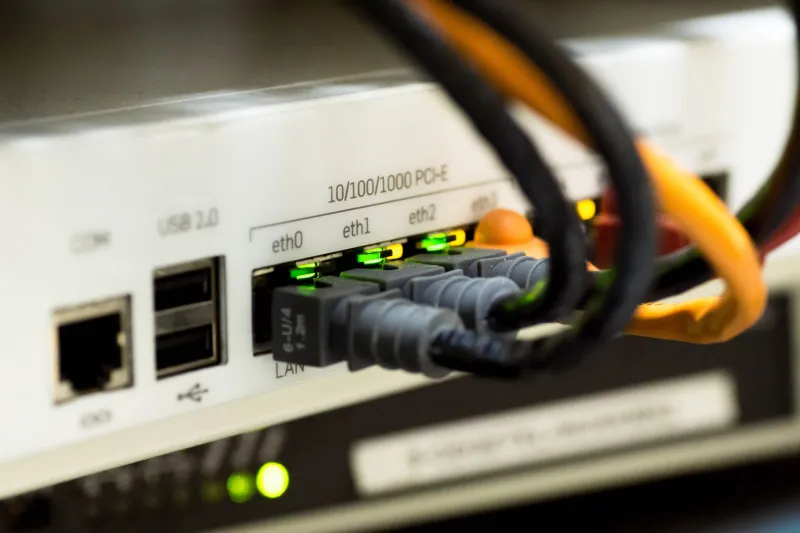
Photo: Dietmar Rabich, CC BY-SA 4.0, via Wikimedia Commons
Firmware updates have a talent for arriving at the worst possible moment. You open the doorbell app to check a parcel and there is a banner. The printer asks for a restart five minutes before a call. The router wants to reboot while someone is on a video interview. The temptation is either to smash the update button on everything or to ignore the lot until something dies. Neither is a plan.
A better approach is a scheduled window, not a Sunday afternoon rescue mission. Twenty minutes of attention once a month, plus a few notes, is enough to keep the gear you actually rely on in reasonable shape. The aim is not to have the newest firmware on the street. It is to have a house that still works on Monday morning.
First, decide what deserves the bother
Not every smart plug needs firmware babysitting. Make a short list of the things that would genuinely spoil your week if they misbehaved: the router or mesh system, the video doorbell, the thermostat and its hub, the printer, and any NAS box holding photos or backups. If a device runs heating, security, work or backups, it gets a slot in the routine. If it is a novelty bulb you bought for a laugh, let it auto-update and forget it.
For each device, note the model, the current firmware version and where updates come from. Some use an app, some a web dashboard, some update themselves without asking. This matters in the UK because ISP-supplied routers often update on their own schedule, and the version shown in a manufacturer app may not match what the ISP has pushed. You are looking for a realistic picture, not a perfect one.
Read the notes like a suspicious neighbour
Release notes can be three vague lines or a 30-page document. Look for security fixes, model and hardware revision, known issues and anything that says settings will be reset. A firmware update is not quite the same as a normal software update: it can change how the hardware behaves, and some vendors are much better than others at explaining what they have done.
If the notes mention a security fix, treat it as a priority. If they only say 'improves stability' and the device has been stable for months, you can wait a week or two. If it is a brand-new .0 release, waiting a few days is sensible unless the security issue is urgent. For a NAS, check drive compatibility and whether the update affects backup jobs. For a printer, check whether the update changes anything about consumables or third-party cartridges. You do not need to become a firmware historian. You just need to know whether this update is about safety, features or housekeeping.
The 20-minute patch window
Pick a quiet time when nobody needs the internet for a meeting and nobody is relying on the heating to make a sudden recovery. Tell the household that the Wi-Fi may blip. Put the kettle on, but do not start a roast dinner.
Start by taking a snapshot. Export the router configuration if it offers that option. Save the NAS settings. Screenshot the thermostat schedule. Note any printer settings you have changed. This sounds fussy, but it takes two minutes and gives you something to compare against if a device comes back with amnesia.
Update the network gear first, because everything else depends on it. Use a wired connection if you can, or keep a phone on mobile data so you can still look up support pages if the router reboots and sulks. Wait for it to come back fully, then test the internet and Wi-Fi before moving on.
After that, do one device at a time. Update the doorbell and check live view and the indoor chime. Update the thermostat and check the schedule and a manual boost. Update the printer and print a test page. Update the NAS and check that shares and backup jobs are still visible. Do not press update on everything at once. If one device fails, stop and fix it before introducing another variable.
Twenty minutes is the active attention, not the elapsed time. A NAS update can take longer, so start it and walk away, but only after a backup has finished. A doorbell may take a few minutes to reconnect. The point is to stagger the work, not to rush it.
Keep a way back
Rollback is not a personality. It is a plan. Before any update, check whether the vendor allows you to reinstall the previous firmware. Some do; many do not. If there is no way back, wait longer before applying the update and read the notes more carefully. Keep any old firmware file the vendor provides, but do not download firmware from a random forum. That is how a quiet Sunday becomes a long one.
If something goes wrong, do not factory reset as a first move. Isolate the device, try a wired connection if it has one, and check the vendor status page. For ISP-supplied kit, ring the ISP rather than flashing something unofficial. For a NAS, make sure you know where the backups are before you start poking at settings. A calm rollback plan is usually a backup, a config export and the phone number of someone who supports the thing.
When to leave well alone
Some kit is better left to its own devices. ISP routers usually receive updates automatically, and manually flashing them is rarely worth the risk unless the ISP tells you to. Older hardware that no longer receives security updates is a different problem: do not hunt down unofficial firmware to keep it alive. Isolate it on a guest network if you must, and plan a replacement.
If a smart-home brand has abandoned its app, the firmware is not coming back and sideloading a file from an unknown source is a bad trade. If a NAS has no backup, it is not update day. If a printer is working and the release notes are pure mystery, waiting is allowed. And never update the router, doorbell or thermostat just before a party, a holiday or a house move. The best firmware routine includes a diary.
Make it a small ritual
Put a recurring reminder in your calendar. A monthly 20-minute slot for the router and NAS is sensible; the doorbell, thermostat and printer can be quarterly unless there is a security notice. Keep a simple log: date, device, old version, new version, anything odd. That log is more useful than another app.
After the updates, run the quick tests and close the laptop. The goal is a boring, reliable setup that quietly does its job. A calendar slot and a cup of tea are a much better combination than a panic update on a Sunday evening.